
How to Use Pomelli — Step-by-Step Guide
Pomelli is a free AI tool from Google Labs that creates marketing content in your brand’s style. In this guide, we’ll walk through every step: from sign-up to getting your finished creatives.
How Much Does Pomelli Cost
Pomelli is completely free. The service operates in public beta — Google doesn’t charge anything and doesn’t require a subscription. All you need is a Google account. There’s no invite system or waitlist: anyone from supported countries (US, Canada, Australia, New Zealand) can sign up. From other countries — use a VPN.
Step 1. Open Pomelli and Sign In
Go to pomelli.withgoogle.com and click the sign-in button. Pomelli uses standard Google authentication — enter the email and password for your Google account. If you have two-factor authentication enabled — confirm the login as usual.
Step 2. Accept the Terms of Use
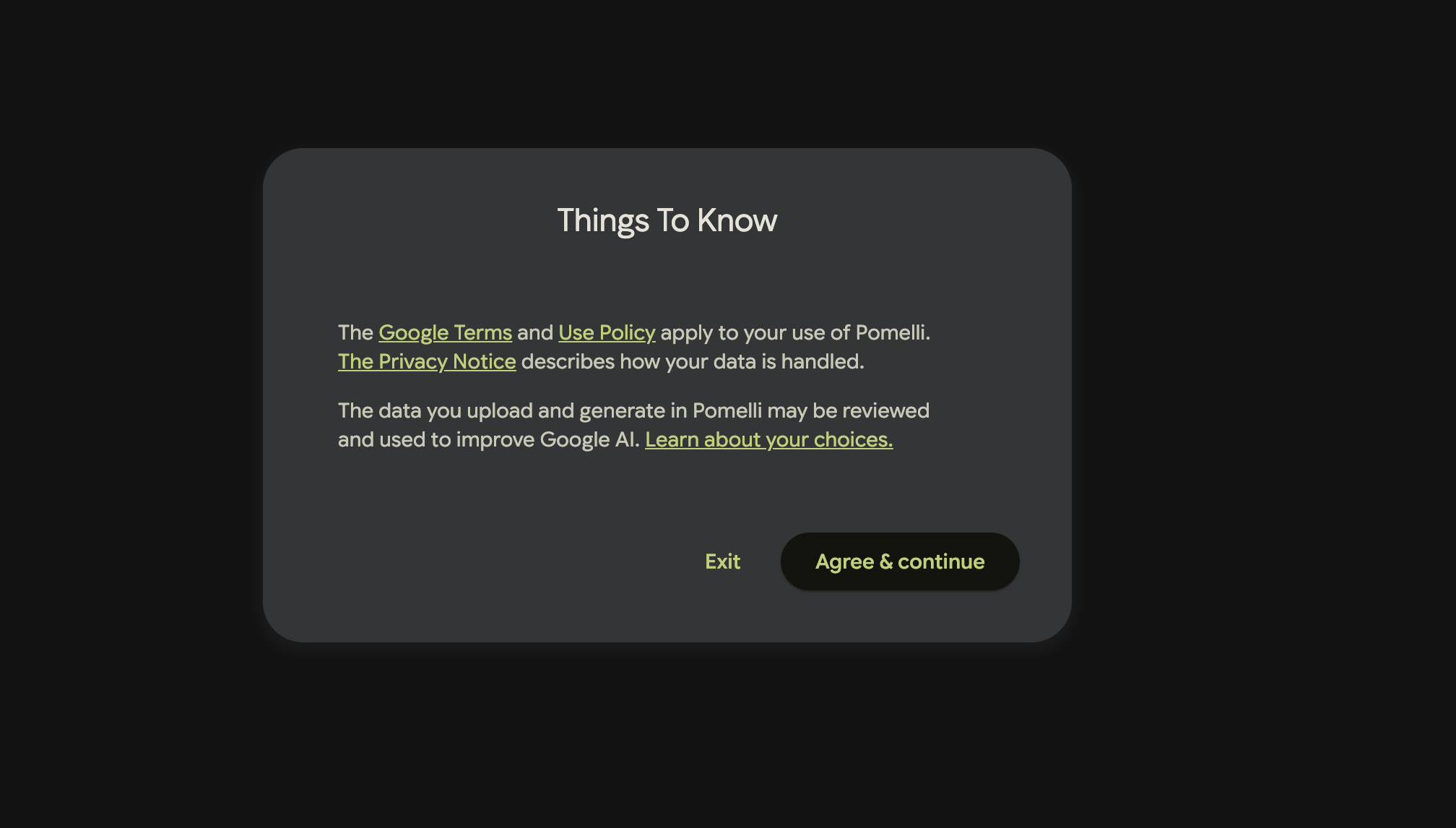
After signing in, you’ll see a “Things To Know” screen — information about the service rules. It states:
- Google Terms and Use Policy apply to Pomelli usage.
- The Privacy Notice describes how your data is processed.
- Data you upload and generate in Pomelli may be reviewed and used to improve Google AI. Click “Learn about your choices” to manage these settings.
At the bottom are two buttons: Exit and Agree & continue. Click Agree & continue to get started.
Step 3. Welcome Screen — How Pomelli Works
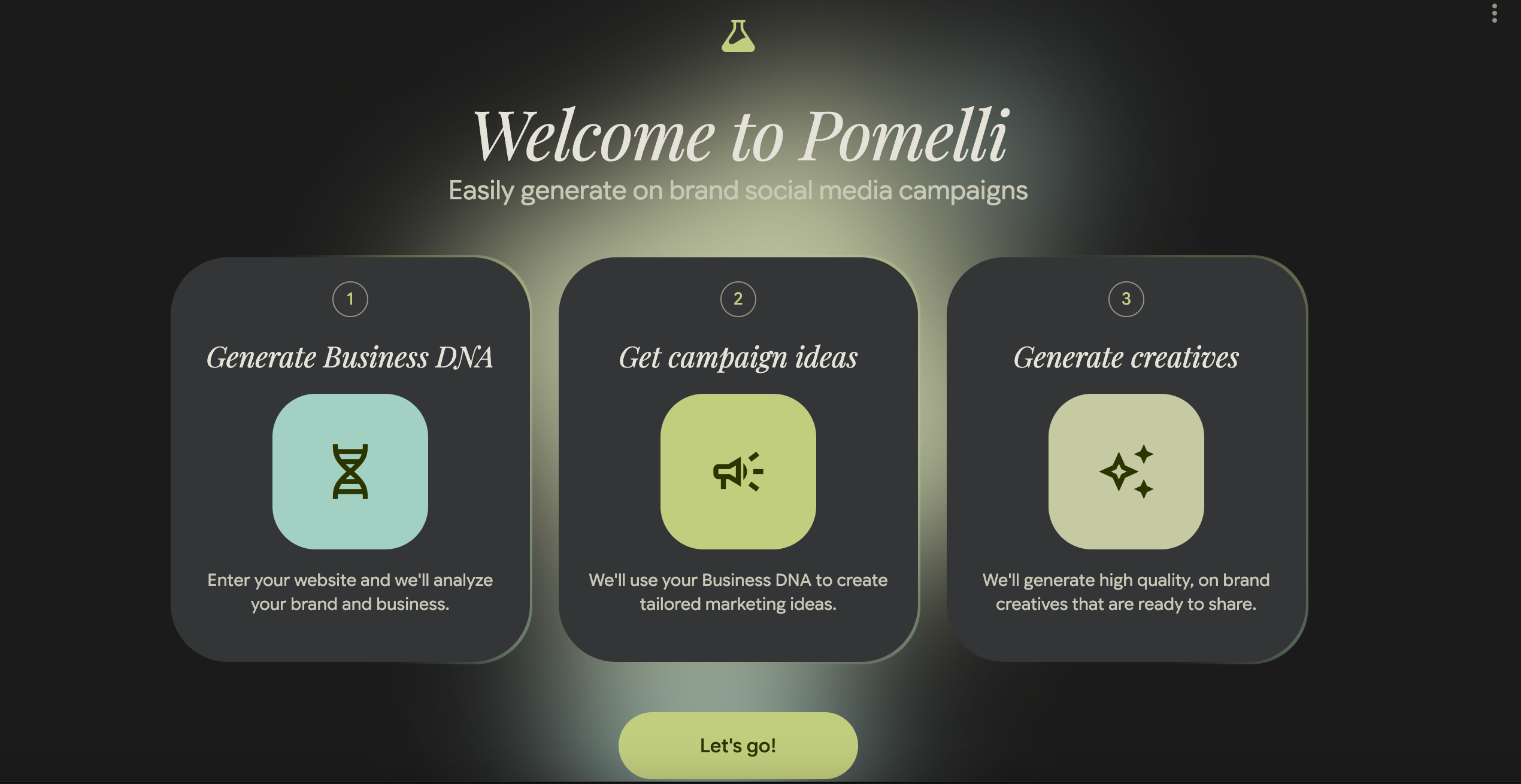
After accepting the terms, you’ll see the “Welcome to Pomelli” screen with the subtitle “Easily generate on brand social media campaigns.” It illustrates three stages of the service:
- Generate Business DNA — you enter your website URL, and Pomelli analyzes your brand and business. The DNA helix icon emphasizes that the service “reads” your brand’s unique identity.
- Get campaign ideas — based on your Business DNA, Pomelli suggests personalized marketing ideas. The icon is a megaphone with AI sparkles.
- Generate creatives — the service generates high-quality, branded creatives ready for publishing. The stars icon symbolizes AI magic.
Click “Let’s go!” at the bottom of the screen to proceed.
Step 4. Enter Your Website URL
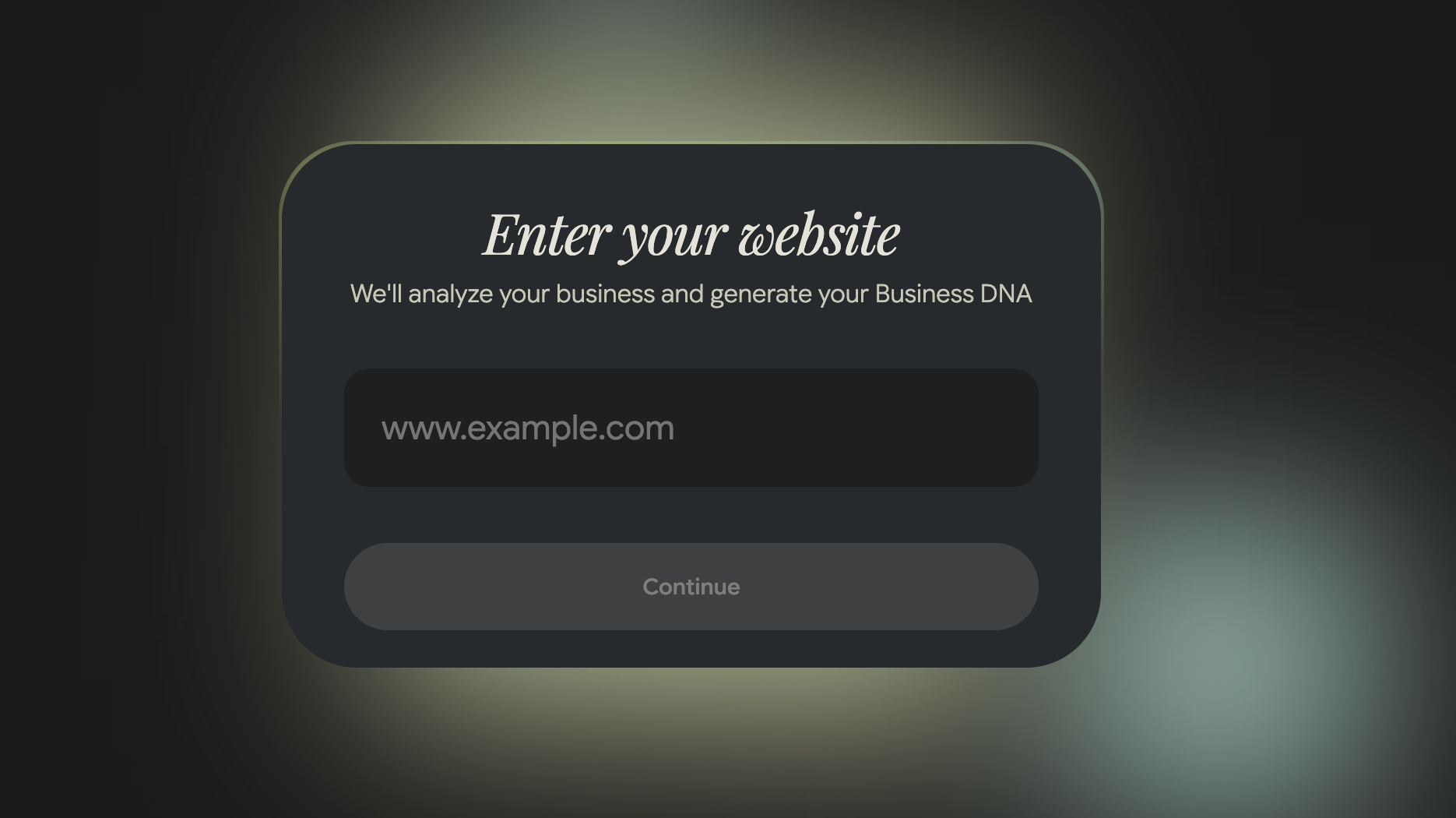
On the next screen, you’ll see the heading “Enter your website” with the explanation: “We’ll analyze your business and generate your Business DNA.”
In the input field with the placeholder www.example.com, type the full URL of your website — for example, https://myshop.com. Pomelli will scan public pages and identify your brand style: colors, fonts, tone of voice, visual elements.
After entering the URL, click Continue.
Tip: use your homepage — it usually contains the most brand information. If you don’t have a website, you can enter a social media page or landing page.
Step 5. Wait for Business DNA Generation
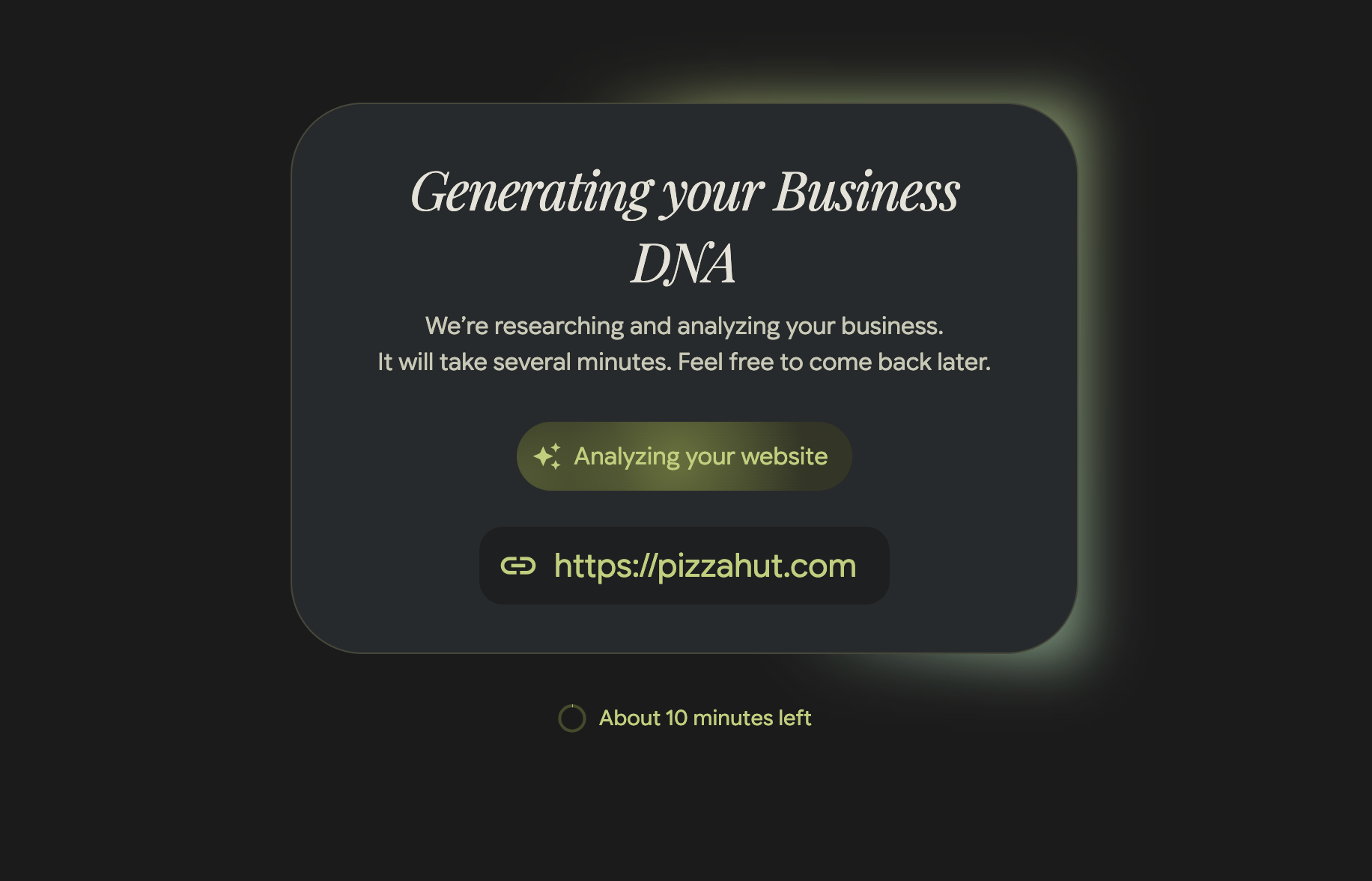
After entering your site, Pomelli begins the analysis. You’ll see the “Generating your Business DNA” screen with the message: “We’re researching and analyzing your business. It will take several minutes. Feel free to come back later.”
On this screen you’ll see:
- The status “Analyzing your website” with an AI sparkles icon — the service is scanning your site.
- A link to your website (in the example —
https://pizzahut.com), so you can see which site is being processed. - A timer “About 10 minutes left” — the estimated wait time. Analysis usually takes 5 to 10 minutes depending on site size.
You don’t have to wait on this page — you can close the tab and come back later. Your Business DNA will be saved in your account.
Step 6. Choose a Campaign or Create Your Own
When your Business DNA is ready, Pomelli will suggest several ready-made marketing campaign ideas tailored to your brand. Each idea includes a theme, description, and content preview.
You can:
- Choose a suggested campaign — if the idea works for you, click on it to generate.
- Describe your own idea — enter a text prompt, and Pomelli will create a campaign based on your description.
Step 7. Edit and Download Your Creatives
Pomelli will generate ready-made marketing materials: social media images, banners, posts with text. All creatives are already styled to match your brand identity.
At this stage you can:
- Edit text — change headlines, descriptions, and calls to action.
- Edit images — give natural language commands, for example: “make the background darker,” “add the logo,” “enlarge the text.”
- Download finished files — in formats ready for publishing on any platform.
Quick Reference
| Step | What to Do | Time |
|---|---|---|
| 1 | Open pomelli.withgoogle.com and sign in with Google | 1 min |
| 2 | Accept the terms of use (Agree & continue) | 30 sec |
| 3 | Review the three workflow steps and click Let’s go! | 30 sec |
| 4 | Enter your website URL and click Continue | 30 sec |
| 5 | Wait for Business DNA generation | 5–10 min |
| 6 | Choose a campaign or describe your own idea | 1–2 min |
| 7 | Edit and download your creatives | 2–5 min |
Video Guide
Watch the video tutorial to see the entire process in action: